
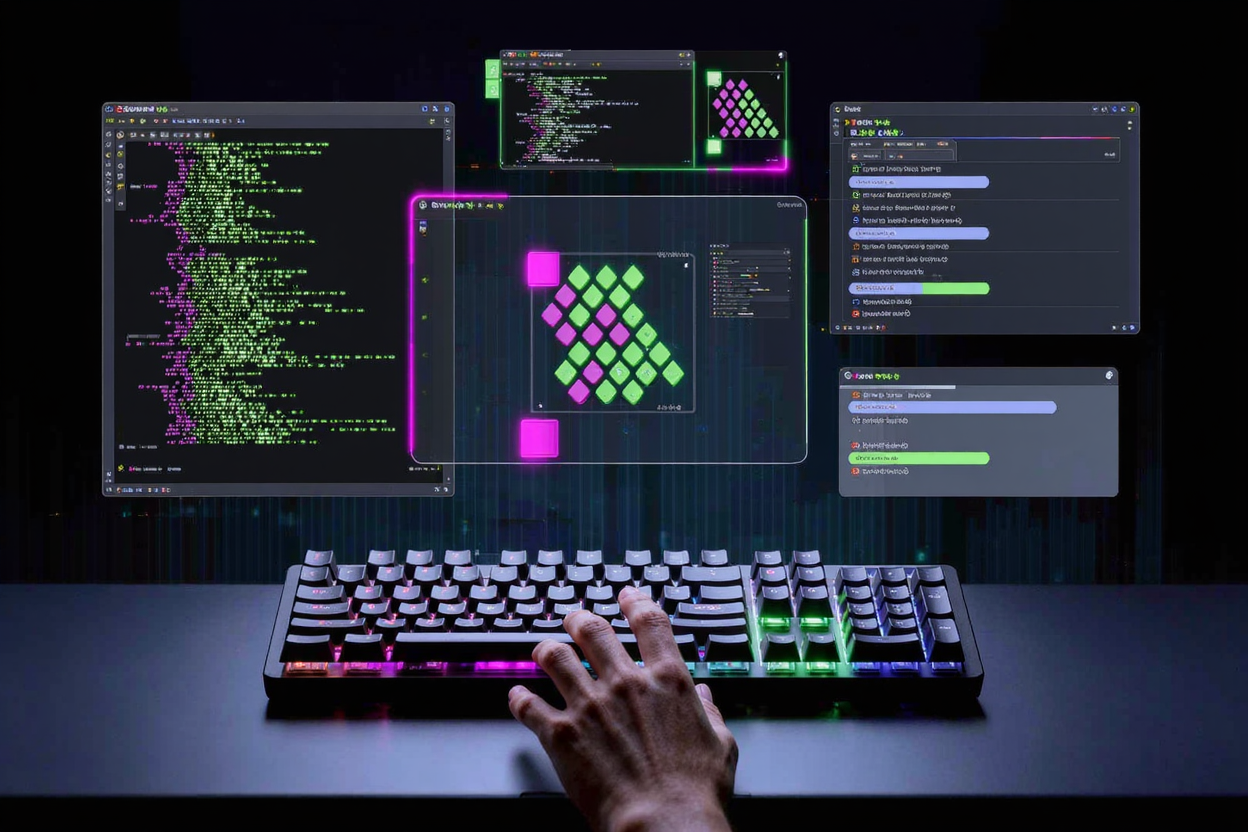
In the fast-paced world of development and digital creation, every second counts. Keyboard shortcuts are not just a convenience; they are a cornerstone of efficiency, transforming tedious multi-click tasks into instantaneous actions. Mastering these shortcuts can significantly boost your productivity, reduce strain, and keep you focused on the task at hand.
However, with countless applications and operating systems, remembering every shortcut can feel like an impossible feat. This is where keyboard shortcut reference guides become indispensable. These guides are your secret weapon, providing a structured way to discover, learn, and implement the shortcuts that will revolutionize your workflow.
Why Keyboard Shortcuts Are Essential for Productivity
The primary benefit of keyboard shortcuts lies in their ability to streamline your interactions with software. By keeping your hands on the keyboard, you eliminate the constant back-and-forth movement to your mouse or trackpad. This reduction in context switching and physical movement translates directly into faster task completion and a smoother, more fluid work experience.
For developers, designers, writers, and anyone spending significant time on a computer, optimizing these interactions can free up valuable mental bandwidth. Instead of navigating menus, you can execute commands almost instinctively. This allows you to maintain your flow state, crucial for complex problem-solving and creative endeavors.
Understanding Keyboard Shortcut Reference Guides
A keyboard shortcut reference guide is essentially a comprehensive list or interactive tool that maps specific key combinations to their corresponding actions within an application or operating system. These guides can take various forms, from simple printable cheat sheets to integrated help menus and sophisticated online databases.
They serve as a central repository for all available shortcuts, categorized often by functionality or common tasks. Whether you're working in a code editor, a graphic design suite, or your operating system's file explorer, there's likely a guide designed to help you unlock its full potential through keyboard commands.
Where to Find Reliable Reference Guides
- In-Application Help Menus: Many software applications include a "Help" or "Keyboard Shortcuts" section directly within their interface. These are often the most accurate and up-to-date sources.
- Official Documentation: The official websites of software developers typically host extensive documentation, including dedicated pages for keyboard shortcuts.
- Operating System Settings: Your operating system (Windows, macOS, Linux) has its own set of global shortcuts. These can usually be found within the system settings or preferences.
- Community & Third-Party Resources: Websites, blogs, and forums often compile user-friendly cheat sheets and guides for popular tools. Be sure to verify the accuracy against official sources.
Effective Strategies for Learning and Memorizing Shortcuts
Simply having a guide isn't enough; you need a strategy to integrate these shortcuts into your muscle memory. Start by focusing on the shortcuts you'll use most frequently. Identify the tasks you perform repeatedly throughout your day and look up their corresponding shortcuts first.
Start Small and Build Gradually
Don't try to learn everything at once. Pick 2-3 new shortcuts each week that are relevant to your daily tasks. Write them down, stick them on your monitor, or use a digital sticky note. Consciously force yourself to use them until they become second nature. This gradual approach prevents overwhelm and builds confidence.
Contextual Learning and Active Practice
One of the most effective ways to learn is through contextual practice. When you're about to perform an action with your mouse, pause and try to recall if there's a shortcut for it. If not, look it up immediately in your reference guide. This active engagement reinforces the learning process significantly.
Regular practice is key. The more you use a shortcut, the more ingrained it becomes. Consider setting aside a few minutes each day to deliberately practice using your new shortcuts, perhaps by performing a routine task solely with the keyboard.
Leverage Mnemonics and Visual Cues
Sometimes, creating a small mental trick or mnemonic can help you remember a shortcut. For example, "Ctrl+S" for "Save" is easy to remember because 'S' stands for save. For more complex combinations, associate them with a visual image or a short story. Many applications also display shortcuts next to menu items, providing excellent visual cues as you navigate.
Integrating Shortcuts into Your Daily Workflow
Once you've started learning, the next step is to seamlessly integrate these shortcuts into your actual work. This is where the true power of efficiency unlocks. Identify the bottlenecks in your current workflow and actively seek out shortcuts that can alleviate them.
Many developers find immense value in utilizing free developer tools that often come with robust shortcut systems. These tools are designed to maximize coding efficiency, and their integrated guides can be a goldmine for productivity hacks. Exploring such platforms can reveal new ways to interact with your code and project files.
Customizing Shortcuts for Personal Efficiency
Some advanced applications and operating systems allow you to customize or rebind shortcuts. If a default shortcut is awkward or conflicts with another, consider changing it to something more intuitive for your specific needs. This personalization can further enhance your comfort and speed, tailoring the software to your unique style of work.
Beyond the Basics: Advanced Shortcut Usage
As you become more proficient, you can explore advanced shortcut functionalities. This might include learning multi-key sequences, using modifier keys in new combinations, or even setting up macros. Macros automate a series of actions into a single shortcut, providing a powerful way to handle highly repetitive tasks with minimal effort.
For those looking to deepen their toolkit, an online dev tools collection like DevToolHere can offer insights into how different tools integrate and leverage shortcuts. Many specialized tools provide unique shortcuts tailored to their specific functionalities, which can be invaluable for niche development tasks.
Optimizing Digital Assets for an Efficient Workflow
While mastering keyboard shortcuts focuses on interaction efficiency, overall workflow optimization also involves the efficient handling of digital assets. For instance, large image files can slow down web applications and development environments. Using a tool like a PNG Compressor to reduce file sizes without compromising quality is another way to contribute to a faster, more responsive development experience. It's a different kind of "shortcut" for better performance.
The DevToolHere Advantage
DevToolHere is committed to providing developers with resources that enhance their productivity and streamline their work. Our platform hosts a variety of free developer tools designed to simplify complex tasks and offer quick solutions. By integrating these tools into your workflow, alongside your newfound shortcut mastery, you can achieve unparalleled levels of efficiency and focus.
FAQ
What is the fastest way to learn new keyboard shortcuts?
The fastest way is to focus on a few high-frequency tasks, learn their shortcuts, and then force yourself to use those shortcuts repeatedly. Contextual learning—looking up a shortcut right when you need it—is also highly effective.
Can using keyboard shortcuts really make a significant difference in my work?
Absolutely. While individual shortcut uses save milliseconds, these add up over hours, days, and weeks. The cumulative effect can save hours of time, reduce mental fatigue, and allow you to maintain a better flow state, leading to higher quality work and greater overall productivity.
Where can I find a comprehensive list of shortcuts for my specific software?
Start by checking the "Help" or "Preferences" menu within the software itself. Most applications have a dedicated section for keyboard shortcuts. If not, consult the official documentation on the software developer's website. Online communities and blogs can also offer compiled lists.
Embrace the power of keyboard shortcuts and transform your digital interactions. Explore the resources available on DevToolHere to further enhance your toolkit and streamline your development process. Start learning today and unlock a new level of productivity!